VS Code camera preview
Inspect saved Java camera mounts beside VisionConfig.java. The preview runs offline and reads the compiled configuration.
Open the preview
Section titled “Open the preview”- Run the robot project’s normal build. It installs the approved Spot extension; reload VS Code if prompted.
- Open
src/main/java/frc/robot/vision/VisionConfig.javain the robot project. - Click the camera icon in the editor title bar, or run Spot: Preview Cameras from the Command Palette.
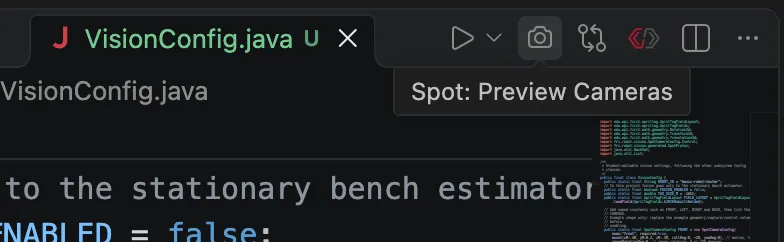
Open the preview from the camera icon. It normally opens automatically beside the configuration file.
| Project | Build |
|---|---|
| offseason-2026 | ./gradlew :offseason-bot:build |
| basic-robot-tester | ./gradlew build |
| Windows | Use gradlew.bat in place of ./gradlew |
The first preview can take longer while Gradle resolves dependencies. Automatic private extension downloads require an authenticated GitHub CLI (gh) with access to team581/spot-2026. The visualizer itself does not require gh; use the manual installation steps below if it is unavailable.
Install manually without gh
Section titled “Install manually without gh”- Open the robot project’s
camera-preview-release.jsonand note itstag,assetandversion. Use the version pinned by that project. - Sign into GitHub in your browser with an account that has access to
team581/spot-2026, then open the Spot releases. Find the release matchingtagand download the.vsixfile matchingassetunder Assets. The current pin is camera-preview-v0.1.2, with assetspot-camera-preview-0.1.2.vsix. - In the VS Code installation you use for the robot project, open Extensions, click …, and choose Install from VSIX…. Select the downloaded file. If using an alternate VS Code profile, install into that profile.
- Reload VS Code if prompted, then open
VisionConfig.javaand run Spot: Preview Cameras from the Command Palette, or click the camera icon in the editor title bar.
Once the pinned version or a newer version is installed, the build skips the extension download, so gh is unnecessary. Repeat these steps when the project pins a newer version. The preview runs offline after installation; the first robot build may still need connectivity to resolve Gradle dependencies.
Verify a mount
Section titled “Verify a mount”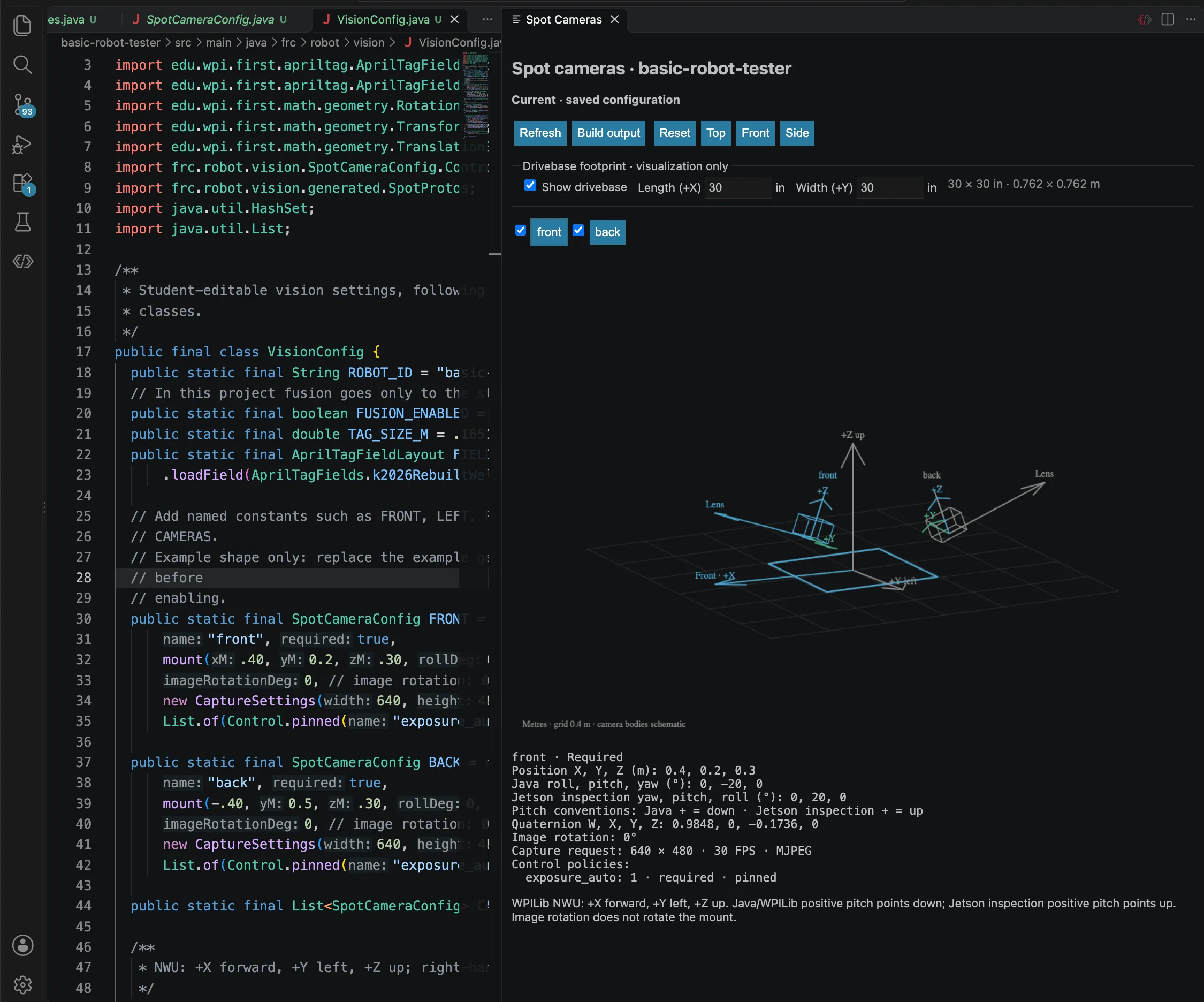
Keep definitions on the left and mounts on the right. This older screenshot uses illustrative mounts and earlier pitch labels; current versions use WPILib pitch on both sides.
- Register the measured definitions in CAMERAS. A named constant alone does not appear in the scene.
- Save a position or rotation change. The preview builds and refreshes automatically.
- Select a camera and compare its position, lens direction and local axes with the physical mount. Hide other cameras to isolate it.
- Drag to orbit, scroll to zoom, or use Top, Front, Side and Reset. Inspect the capture request and control policies below the scene.
Pitch: positive points the lens down; negative points it up. Java −20° and Jetson inspection −20° both point up. Image rotation is separate from mount rotation.
Check preview status
Section titled “Check preview status”| Status | Meaning / action |
|---|---|
| Current | Saved configuration exported successfully |
| Unsaved changes | Scene still reflects an earlier saved version |
| Building | A new export is running |
| Stale preview | Last successful scene retained after an error; open Build output, fix the code and save or refresh |
Troubleshooting
Section titled “Troubleshooting”| Problem | Try this |
|---|---|
| No panel | Run Spot: Preview Cameras; check workspace trust and Spot Camera Preview: Auto Open. Closing the panel suppresses auto-open for that session. |
| Empty scene | Add measured definitions to CAMERAS. |
Download fails or gh is missing |
Follow Install manually without gh above, or run gh auth status, verify private repository access, then retry the install task below. |
| Build fails | Open Build output and fix Java/project errors. Invalid names, dimensions or image rotation can block export. |
| VS Code CLI missing | Set SPOT_CAMERA_PREVIEW_CODE to the code executable, or use the Gradle override below. |
Extension updates and manual installation
Each robot project pins a private release version and checksum in camera-preview-release.json. Pull team changes, then build to install the approved version if missing or older. Newer installations are not downgraded. Cached, checksum-verified packages can install offline; the first download needs GitHub authentication and connectivity. The cache lives under Gradle user home in spot-camera-preview.
Saving Java refreshes geometry only. Preview exports, CI and SSH builds skip installation. An automatic install failure warns without failing the robot build.
To retry explicitly:
# basic-robot-tester./gradlew installSpotCameraPreview# offseason-2026./gradlew :offseason-bot:installSpotCameraPreviewUse -PskipSpotCameraPreviewInstall=true to opt out, or -PspotCameraPreviewCode=/path/to/code to choose VS Code. For an alternate VS Code profile, install the VSIX into that profile manually: download the pinned private release asset and choose Extensions → … → Install from VSIX. Reload if prompted. If the release is missing, a maintainer must publish it and update the project manifests.
Scene conventions and shortcuts
Positions use metres and WPILib NWU axes. Arrow keys orbit; +/− zoom. Grid spacing is 0.4 m. The optional Show drivebase footprint defaults to 30 × 30 in (0.762 × 0.762 m), centered at the origin at Z=0. Length (+X) and Width (+Y) are in inches and persist across refreshes. These inspection settings do not change robot configuration.
Camera bodies and the drivebase are schematic; no calibrated field of view is inferred. Readouts show translation, quaternion, native roll/pitch/yaw, capture request, image rotation, required status and control policies.
Before commissioning, verify physical identity, calibration, delivered FPS, USB capacity and applied controls on the Jetson. See Cameras in Java.