3. Set camera geometry
Compare the measured mount in robot code with the 3D view. Production geometry comes from the robot profile.
Measure in the robot frame
Section titled “Measure in the robot frame”| Value | Convention |
|---|---|
| X / Y / Z | Metres from the robot origin to the camera optical origin |
| Positive axes | X forward · Y left · Z up (WPILib NWU) |
| Roll / pitch / yaw | Right-handed rotation; Java Rotation3d takes radians |
| Pitch | Positive points the forward lens down; negative points it up |
Keep the pitch sign. Java and the Jetson use the same WPILib sign. A Java pitch of −20° also displays as −20° on the Jetson and points the lens up.
Inspect the mount
Section titled “Inspect the mount”- Open the named camera’s Geometry tab.
- Compare X/Y/Z and Yaw/Pitch/Roll with the measured code values. Use the Front and Lens arrows to check direction.
- Drag to orbit and scroll to zoom. Reset view restores the starting view.
- To try an adjustment, enable Inspection preview. To change the production mount, edit robot code and deploy the new profile.
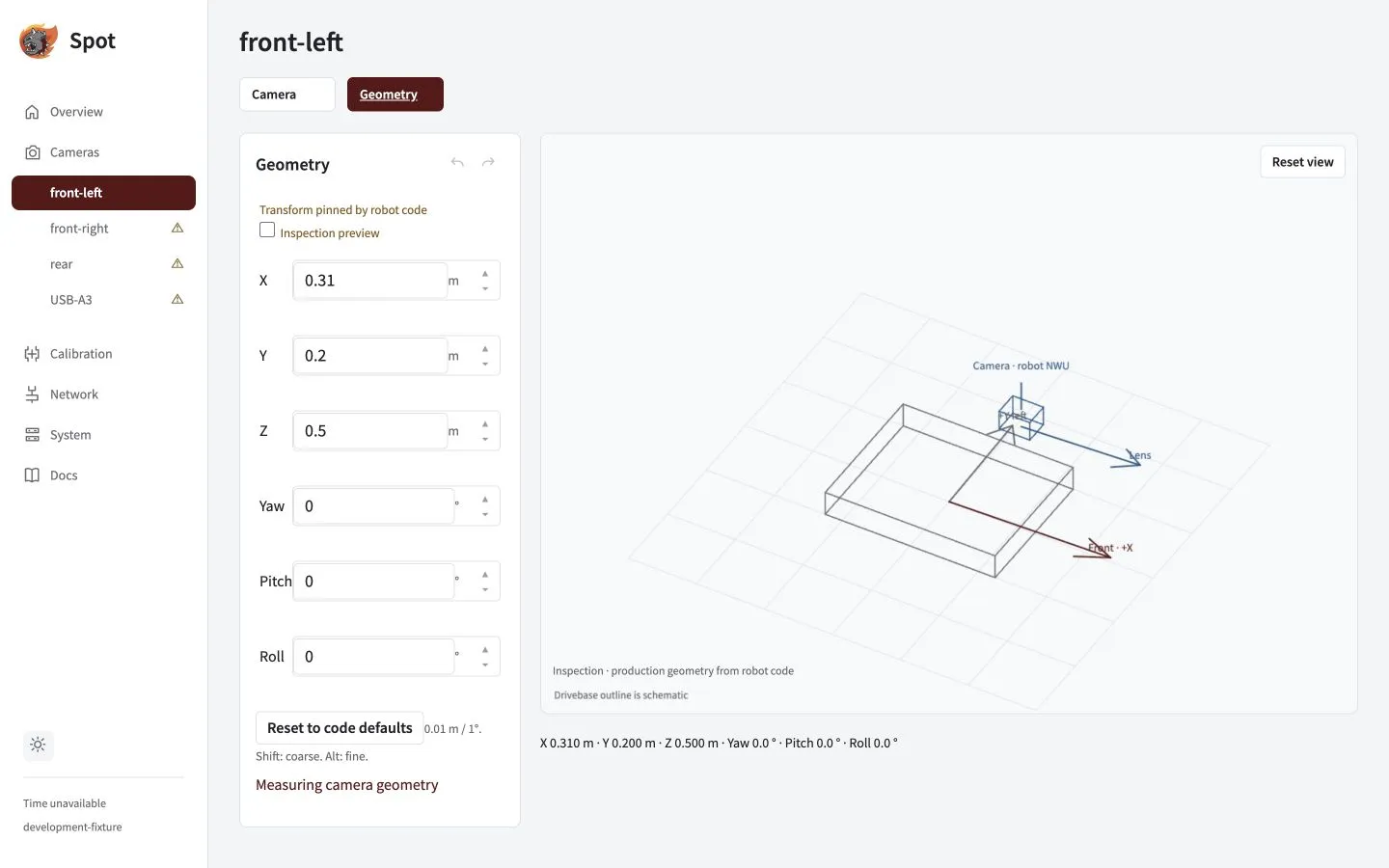
The camera transform follows the profile. The drivebase outline is schematic; these example coordinates are not production measurements.
Inspect before deploying
Section titled “Inspect before deploying”Use the VS Code camera preview to view saved Java camera definitions beside the code, without a Jetson connection.
Viewer shortcuts and number editing
| Action | Shortcut |
|---|---|
| Orbit / zoom | Arrow keys / + and − |
| Step a value | Up/Down or steppers: 0.01 m or 1° |
| Coarse / fine step | Shift: 0.1 m or 10° · Alt: 0.001 m or 0.1° |
| Commit / cancel | Enter or blur / Escape |
Partial text stays editable. Finite values update the inspection preview; invalid text does not become zero. A conflict keeps the edit buffer. Scrolling does not change numbers, and native text undo remains available. Production history buttons stay disabled for code-pinned geometry.
Moving cameras
Fixed cameras use measured constant mounts. A moving camera requires capture-time joint history and full moving-mount qualification. Never substitute the current joint angle for the transform at capture time.
Next: calibrate the lens.