1. Connect to Spot
Open the dashboard, check the robot link, and find your cameras. Start here when Spot is already installed on the Jetson.
Open the dashboard
Section titled “Open the dashboard”- Make sure the Jetson is on, then connect to the robot.
- Open spot.local:5800. If the hostname does not resolve, use the Jetson’s local IP address and port.
- Select Network to check the connection, then Cameras to find the physical feeds.
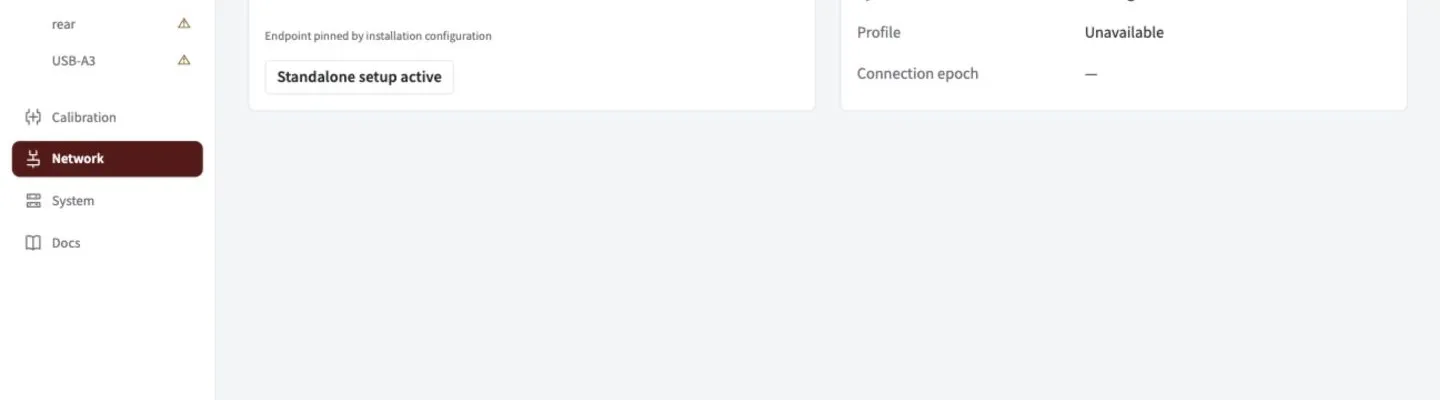
Network shows the robot endpoint, local addresses, clock and profile. This example is disconnected; screenshots in these guides use demonstration data.
Check you are ready
Section titled “Check you are ready”| Check | What to look for |
|---|---|
| Robot endpoint | Team 581 discovery, or the explicit server configured for this installation |
| NetworkTables | Connected to the roboRIO, which runs the NT4 server |
| Synchronization | A current synchronized clock |
| Profile | The current robot profile |
| Cameras | A live feed for each connected USB camera |
Editing locked? Disable the connected robot. For bench work with the link known disconnected, click Begin standalone setup on Network. Unknown robot state never unlocks edits automatically; connecting a robot ends standalone setup.
Set the Jetson address
Section titled “Set the Jetson address”Open Network → Jetson address. The port list shows each Ethernet interface and its current IP address. Pick the port you want to change.
- Automatic (DHCP) gets an address from your router or robot network. It needs a DHCP server.
- Static keeps the address you enter. For team 581, a free address such as 10.5.81.11/24 works on the robot subnet. Keep the roboRIO at its own address, usually 10.5.81.2.
Click Apply for 90 seconds. If needed, open the new address, then click Keep settings. If the connection fails or you do not confirm, Spot restores the previous connection automatically. Revert now restores it immediately. Confirmed settings survive a reboot.
For the two-cable bench, keep the Mac-facing port at 192.168.69.170/24 and change only the robot-facing port. The two ports must use different subnets. A cable directly to the roboRIO usually needs Static because neither end supplies DHCP. Wi-Fi and the internet default route are preserved.
Find Spot: open spot.local:5800 from the same local network. Network shows the actual local name and current IP addresses. If another device already uses spot.local, the displayed name may be spot-2.local. Discovery is advertised through the Jetson’s Ethernet ports so a separate Jetson Wi-Fi link cannot divert name lookup from the robot or maintenance network. Local-name discovery does not cross routers or the Jetson’s two Ethernet links; use the address on the link connected to your computer.
If address controls are unavailable, the installation needs its network helper; see deployment. The Jetson address is separate from the Robot endpoint, which is the roboRIO NT server Spot connects to.
Choose your next task
Section titled “Choose your next task”- Name cameras to bind physical feeds to robot-code names.
- Tune a standalone camera or calibrate without a robot profile.
- Deploy Spot if the Jetson has no installed beta service.
- Recover a connection if a camera or robot link disappears.
Maintenance connection and endpoint settings
For the dedicated Jetson maintenance link:
ssh -i ~/.ssh/spot_jetson_ed25519 team581@192.168.69.170For direct Ethernet, the development Mac uses 192.168.69.171/24 on its connected adapter. These maintenance addresses are separate from the robot NT endpoint.
Installation settings live in /etc/spot-vision/beta.json. Defaults use team 581 discovery and HTTP port 5800. Set nt.server instead of nt.team for an explicit robot endpoint. The Network page changes Ethernet addresses through the installed network helper; it does not change the robot NT endpoint. The UI and saved calibration remain accessible without cameras or a robot; alpha development commands do not start this GUI.