4. Calibrate
Fit the lens model, test it on new views, then apply the passing result. Intrinsic calibration does not measure the robot mount.
Prepare the board
Section titled “Prepare the board”Verify a live preview. A robot profile or name is optional: choose Open standalone camera setup on the camera page, or add the connected camera on Calibration.
| Board setting | Measured printed board |
|---|---|
| Squares X × Y | 15 × 15 |
| Square length | 0.030 m (30 mm) |
| Marker length | 0.022 m (22 mm) |
| Dictionary | DICT_4X4_250 |
Confirm the actual print scale, enter these values in Board, and choose the lens model and minimum fit views. The production CUDA path supports the five-coefficient model.
Capture and fit
Section titled “Capture and fit”- Select a camera and click Add camera.
- Choose Fitting captures, then Start.
- Move the board across the image. Vary distance and tilt while keeping it sharp. Collect at least 15 diverse views.
- Click Calibrate for each camera. Other cameras stay usable while it solves.
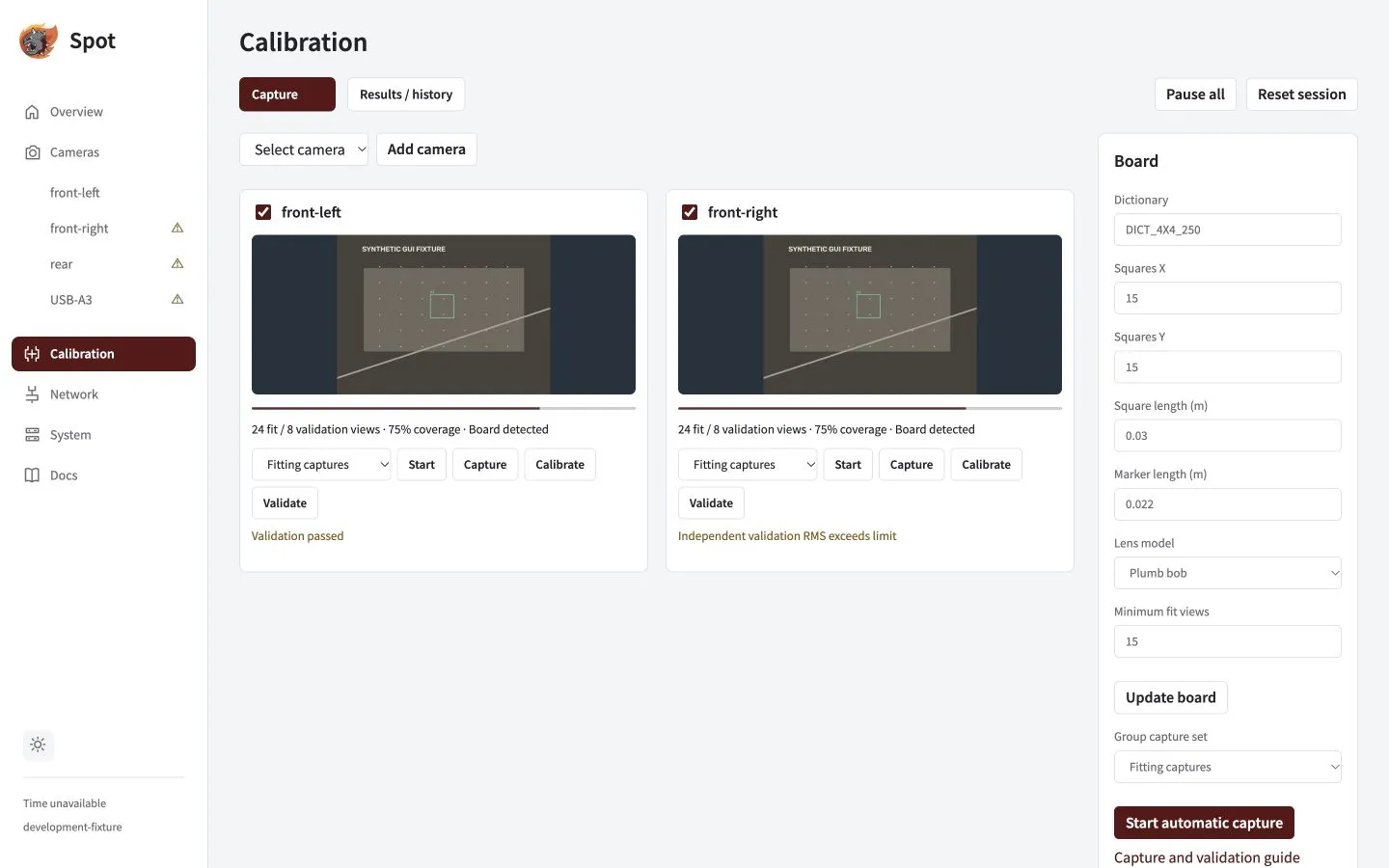
Capture controls are below each feed; board dimensions are on the right. Coverage particles guide where to move the board, but do not certify calibration quality.
Validate on new views
Section titled “Validate on new views”- Switch to Validation captures and click Start.
- Collect at least 5 new, diverse views (up to 20). Keep them separate from the fitting captures.
- Click Validate, then open Results / history.
- Check the view counts, independent validation RMS and pass/retry reason. The configured RMS limit is at most 0.8 px.
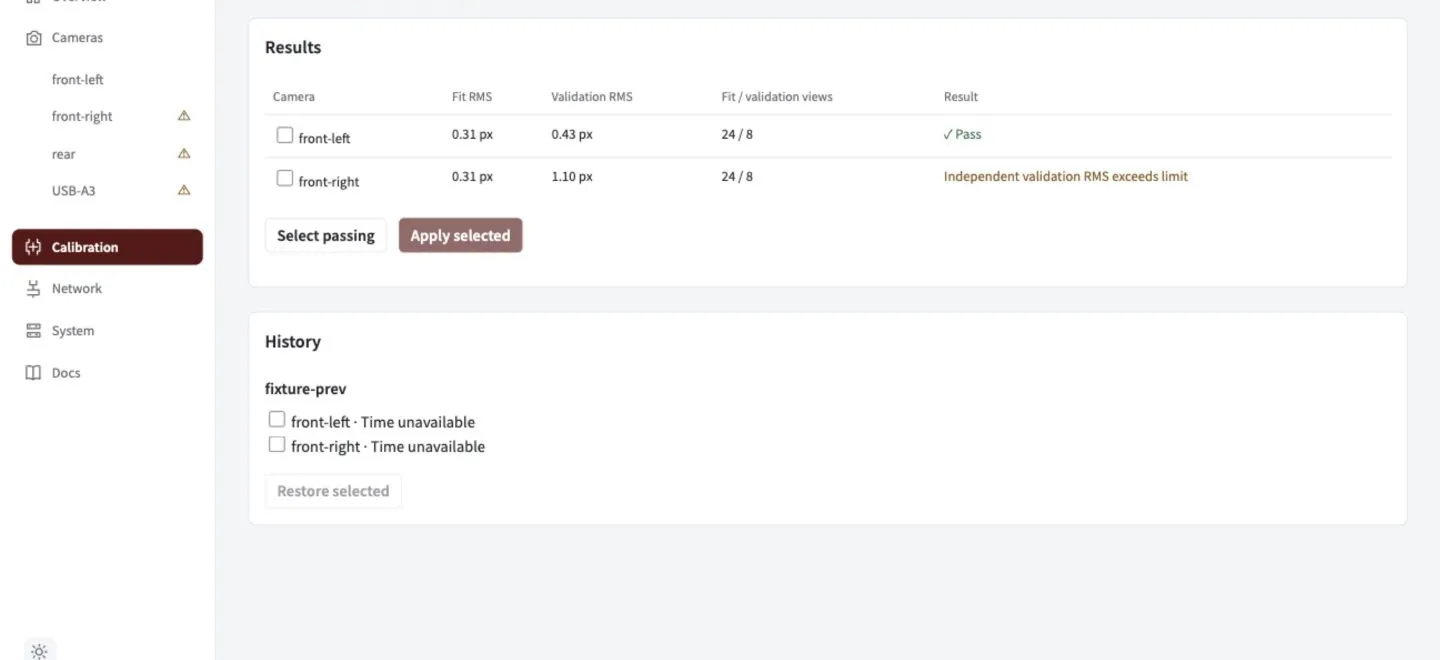
Review each camera’s result before applying. This demonstration includes both a pass and a retry.
Apply or restore
Section titled “Apply or restore”Select the intended group and click Apply selected. Every selected camera must pass; Select passing chooses a smaller passing group. Wait for Applied before using the result.
To recover a previous result, select compatible records in history and click Restore selected.
Recalibrate after optical changes. Replacement, focus, crop, flip or an incompatible optical mode can invalidate calibration. Use a freshly disabled robot or explicitly authorized standalone setup for application and restore.
Group capture and application guarantees
In Board, choose Group capture set and Start automatic capture to start the selected group; Pause all stops it. One board can move between cameras. Capture explicitly accepts a new frame; duplicates are rejected.
Validation holds intrinsics fixed and solves board extrinsics on held-out views; reused frame identities are rejected. Failed fits retain the active calibration.
Application validates the whole group, stages an immutable generation, rebuilds detector/solver state, discards old-generation frames and atomically activates the result. A failed member or write activates none of that group. Applied requires durable runtime acknowledgement. Restore checks identity and optical compatibility using the same rules. Earlier complete generations stay available.